Quick Start for Developer
Run GitLab main from source, then configure optional integrations.
English
简体中文0. Get the source
git clone --branch main --single-branch https://gitlab.vetoedkkb.com/short-links/web.git wr.do
cd wr.do
cp .env.example .envKeep an existing .env if updating a deployment. See Installation for all settings.
1. Start the application and database
Set independent random POSTGRES_PASSWORD and AUTH_SECRET values in .env. Run openssl rand -hex 32 twice to generate them. The default application port is 3100:
APP_PORT=3100
POSTGRES_PASSWORD=replace-with-a-random-database-password
AUTH_SECRET=replace-with-another-random-secret
AUTH_URL=http://localhost:3100
NEXT_PUBLIC_APP_URL=http://localhost:3100docker compose build
docker compose up -d
docker compose ps -aCompose builds the local source using an official Node.js base image and runs an official PostgreSQL image. No prebuilt WR.DO image is used. The database connection is configured inside Compose.
The migrate service executes prisma migrate deploy; Exited (0) is normal. app starts after migration succeeds. Open http://localhost:3100.
The initial administrator is [email protected] / 123456; change the password after first login. Keep .env private. Change APP_PORT, AUTH_URL, and NEXT_PUBLIC_APP_URL together when changing the port, then rebuild.
2. Configure Authentication Service
Password login is available without an external provider. Google, GitHub, and LinuxDO are optional integrations; configure them before enabling them in administration.
We provide the following authentication services:
- Github
- LinuxDo
- Resend Email Verification (Removed after version 1.1.5)
- Email Password Login
Google config
In this section, you can update these variables:
GOOGLE_CLIENT_ID = your_secret_client_id.apps.googleusercontent.com;
GOOGLE_CLIENT_SECRET = your_secret_client;See config tutorial in Authjs - Google OAuth.
Github config
In this section, you can update these variables:
GITHUB_ID = your_secret_client_id;
GITHUB_SECRET = your_secret_client;See config tutorial in Authjs - Github OAuth.
LinuxDo config
LinuxDo_CLIENT_ID=
LinuxDo_CLIENT_SECRET=See config tutorial in Connect LinuxDo.
Resend Email Verification config
Please note that this login method has been removed after version 1.1.5 and can be ignored. For the latest email configuration, please refer to the document Email Configuration.
Create an account
If don't have an account on Resend, just follow their steps after signup here.
Create an API key
After signin on Resend, he propurse you to create your first API key.
Copy/paste in your .env file.
RESEND_API_KEY=re_your_resend_api_key;
RESEND_FROM_EMAIL="you <[email protected]>"3. Email Worker Configs (Recive email)
See detail in Email Worker.
After you have completed the above steps, you need add a public domain for r2 storage.
Via:
https://dash.cloudflare.com/[account_id]/r2/default/buckets/[bucket]/settings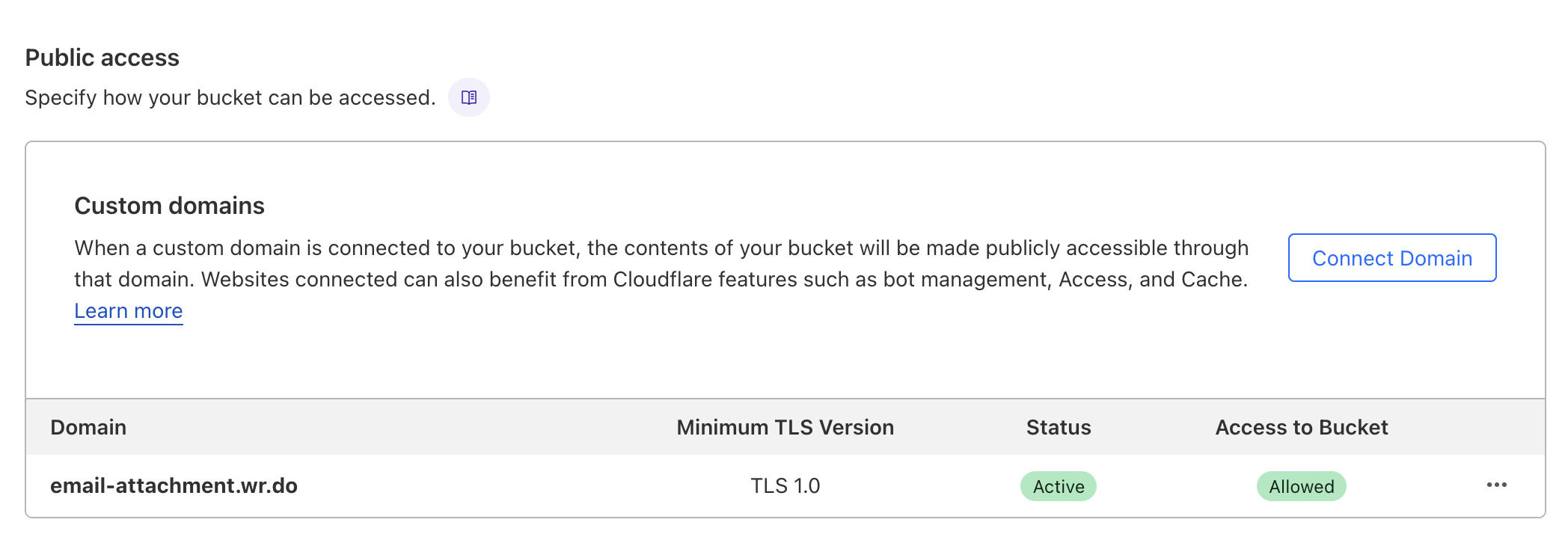
NEXT_PUBLIC_EMAIL_R2_DOMAIN=https://email-attachment.wr.do4. Add the SCREENSHOTONE_BASE_URL Environment Variable
It's the base URL for the screenshotone API.
You can deploy your own screenshotone API from jasonraimondi/url-to-png. Deploy docs via here
SCREENSHOTONE_BASE_URL=https://api.screenshotone.com5. Apply service configuration
Rebuild after changing .env or public configuration:
docker compose up -d --buildDisable unconfigured login providers in administration.
6. Deployment and updates
See the deployment guide and GitLab main update guide.
Q & A
Worker Error - Too many redirects
Via:
https://dash.cloudflare.com/[account_id]/[zone_name]/ssl-tls/configurationChange the SSL/TLS Encryption Mode to Full in the Cloudflare dashboard.